You take a spare laptop to a client meeting and the Hangul (HWP) file you receive will not open. Or the computer you are presenting from has no PowerPoint, so the slides you prepared cannot go on screen. This site started from exactly those situations (About). This guide covers what to prepare before you leave and how to get by with just a browser when it happens anyway.
Five minutes before you leave
- Bring the presentation as both PPTX and PDF. A PDF opens in the browser on almost any computer. In PowerPoint, use Save As → PDF. Animations do not play in a PDF either, so if a slide reveals content step by step, splitting it into several slides is safer.
- Download the files to the laptop. If they only live in email or a messenger, a slow venue Wi-Fi or a blocked sign-in can keep you from getting them. Keep a copy in the laptop's Downloads folder or on a USB drive.
- Open them once on that laptop. This site downloads its document engine (about 12 MB) the first time you open an HWP file. If you open a file or a sample in the HWP Viewer and the PPTX Viewer on the same laptop before you go, the browser keeps the engine and only checks for changes at the venue. Opening the site still needs an internet connection.
- If you used a special font, check the look in the PDF. If the presentation computer lacks that font, a similar one is substituted and line breaks can change.
Showing a PPTX on site
- Open the PPTX Viewer in a browser such as Chrome, Edge or Whale on the presentation computer.
- Use Choose files or drag the PPTX onto the page. Slide thumbnails appear on the left and the current slide in the middle.
- Click Slideshow in the bottom bar to go full screen. Use the → key, space bar or Page Down for the next slide and ← or Page Up for the previous one. Press Esc to finish.
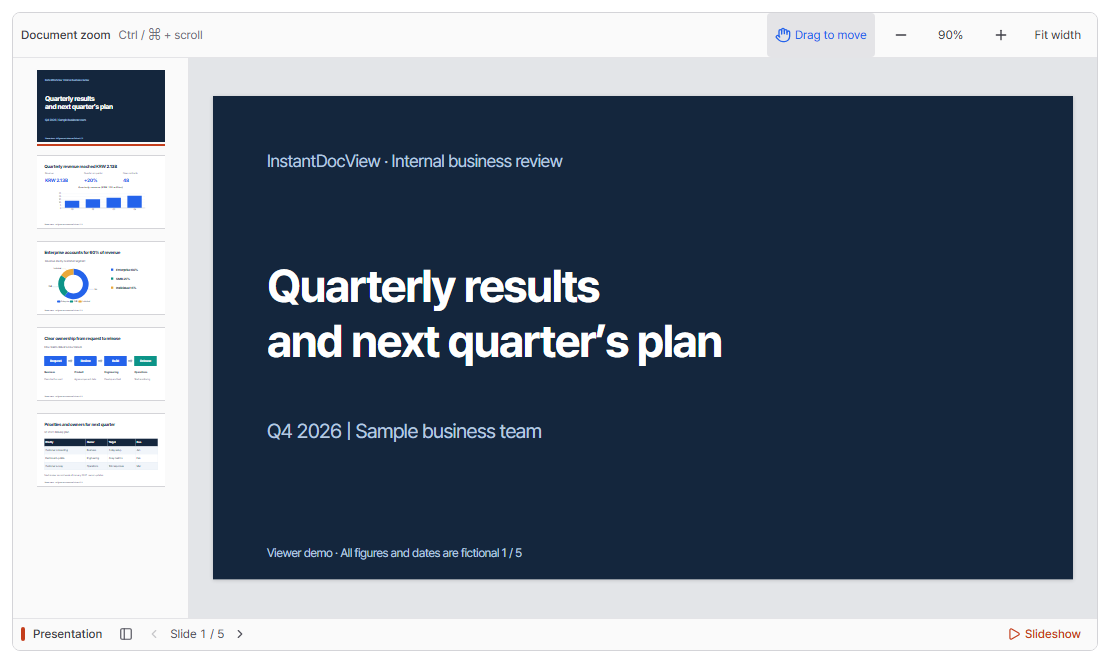
The site's fictional presentation sample (PPTX). Pick a slide from the list on the left and start a full-screen presentation with Slideshow in the bottom bar.
Know the limits in advance:
- Animations, slide transitions and videos do not play; each slide is shown in its final state.
- Legacy .ppt files from PowerPoint 2003 and earlier do not open. Save them as PPTX or PDF before you go.
- There is no separate presenter view for speaker notes. Bring your notes on your phone or on paper.
- The Slideshow button appears only in desktop browsers. On a phone, use the previous and next buttons.
Checking an HWP file you received in a meeting
- Drop the file into the HWP Viewer to see it with the same page breaks as Hangul. HWPX files open too.
- To move the content into an email or a messenger, use Copy text or the Quick text extraction tab. Text inside tables comes out one cell per line, in order.
- Small typos can be fixed in the Edit (beta) tab and saved as HWP or HWPX. Check documents you will submit or send in the Hangul program after saving.
If you borrowed someone else's computer
Files are not uploaded to a server, but a borrowed computer can keep traces.
- Close the browser tab when you are done. Open documents stay in memory until the tab is closed.
- Delete any files you copied to the Downloads folder or the desktop.
- If you used the HWP editor, recovery copies may remain in that browser's storage. Saving removes them, but closing without saving leaves them behind. Avoid editing on shared computers; see the privacy policy for details.
Checklist
| When | What to do |
|---|---|
| Before leaving | Save as both PPTX and PDF and keep a copy on the laptop |
| Before leaving | Open them once in the HWP and PPTX viewers on that laptop |
| On site | PPTX Viewer → Slideshow, then use the arrow keys |
| On site | Check HWP files in page view and copy text if needed |
| Afterwards | Close the tab and delete downloaded files |