A note, Markdown meeting summary, HTML example or JSON data can be easier to send as a link than as an attachment. InstantDocView lets you edit the text in your browser and put it in a link. The recipient opens the same text in the browser viewer. No account or file server is needed.
Create a link
- Open a TXT, MD, HTML or JSON file on the home page. You can also use a sample button to try the feature.
- To change the text, choose Edit, make your changes, check Preview, then choose Apply changes. JSON has a Format JSON button for indentation. Use Download file to save a local copy. The original file is not changed automatically.
- Choose Share in the viewer toolbar. Only the currently selected document is included.
- Read the notice, select Create share link, then Copy link.
- Send the complete address in a message or email. Ask the recipient to check that their app has not cut off the end of a long link.
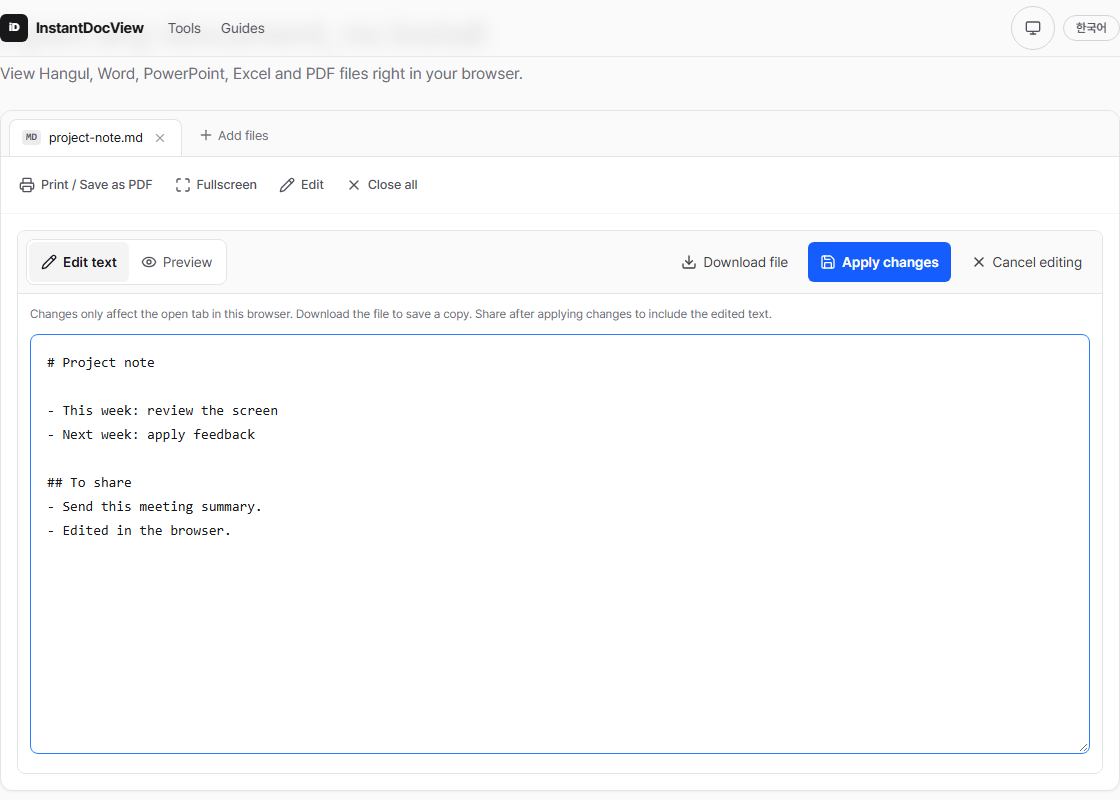
The edited text is applied to the open browser tab; download a file to keep a copy.
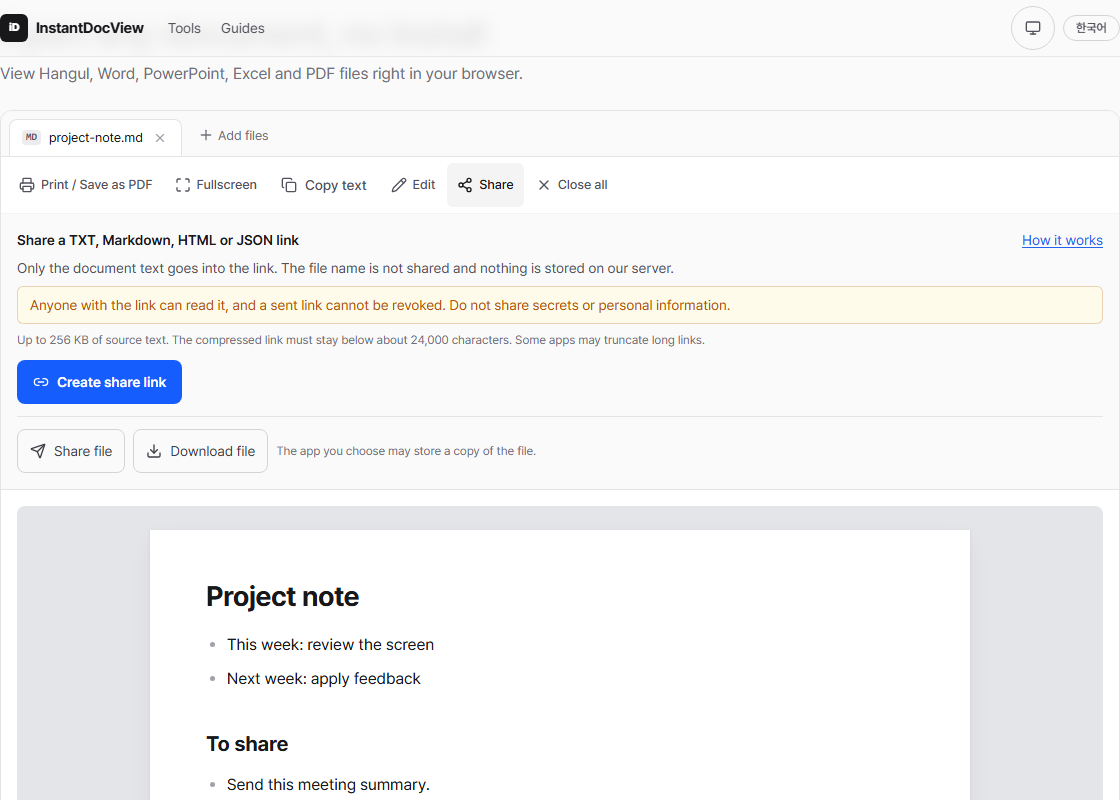
The share panel explains who can read the link and its size limit before creating it.
Open a received link
Open the full address to read the text in the corresponding viewer. Markdown headings and tables, formatted JSON, and a safe HTML preview are shown. HTML scripts and external resources do not run or load. You can copy the text. The receiver can add another local file for comparison, but the link contains only the document selected by the sender.
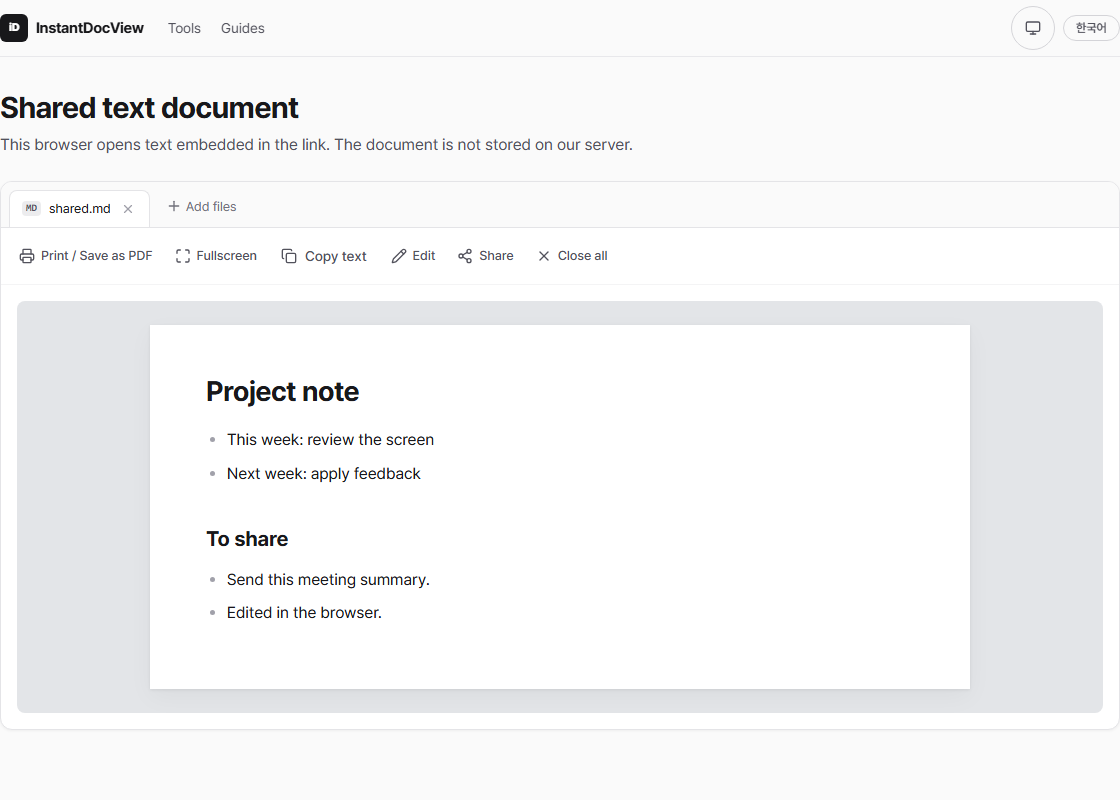
The recipient's browser reads the text included in the link.
How does sharing work without storage?
The text is compressed into the fragment after # in the URL. Browsers do not include a fragment in the HTTP request, so the service does not store the document file. The receiving browser decompresses and displays it. The original file name is not included.
The text is still inside the link. Anyone with the address can read it, and a link that has already been sent cannot be revoked or expired. A messaging service may retain the address you paste into it. Do not use this for passwords, personal information or confidential documents. Consider removing sensitive parts first with the privacy masker.
When the link is too long
Without server storage, the document has to live inside the address, so larger files produce longer links. A truly short address needs another service to store the mapping to the original long address or content. A URL shortener may therefore retain the full link and its embedded text.
The page hides the long address by default and shows Copy link. Choose Show full address only if you need to inspect it. For a large document, use Share file on supported mobile browsers or Download file and send it as an attachment. The messaging or email app you choose may store that file.
Limits and troubleshooting
- Formats: TXT, MD, HTML (.html/.htm) and JSON. The Share button is not shown for HWP, PDF or PPTX.
- Size: up to 256 KB of original UTF-8 text. The compressed link must stay under about 24,000 characters. Repetitive text compresses well; hard-to-compress content may hit the link limit far below 256 KB.
- Invalid link: ask the sender to copy and send the entire address again.
- External images and scripts: the viewer restricts Markdown images and HTML scripts or external resources that could make network requests or run code. HTML may look different from the original web page.
Try a short non-sensitive document first, and open the link in another browser or on a phone before using it with others.